Manage organizations#
A BSR organization owns repositories, plugins, and members. This page covers how to create and delete an organization, and how to add, change, and remove its members from the BSR web app.
Required roles by action:
- Create an organization: any signed-in BSR user.
- Add, remove, or change a member’s role:
OwnerorAdminon the organization. Only anOwnercan change another user’s role to or fromOwner. - Delete the organization:
Owneron the organization. - Deactivate a user account (private BSR only): instance-admin access.
Create an organization#
- Sign in to the Buf Schema Registry.
- Click Show all under the Your organizations section.
-
Select Create Organization.
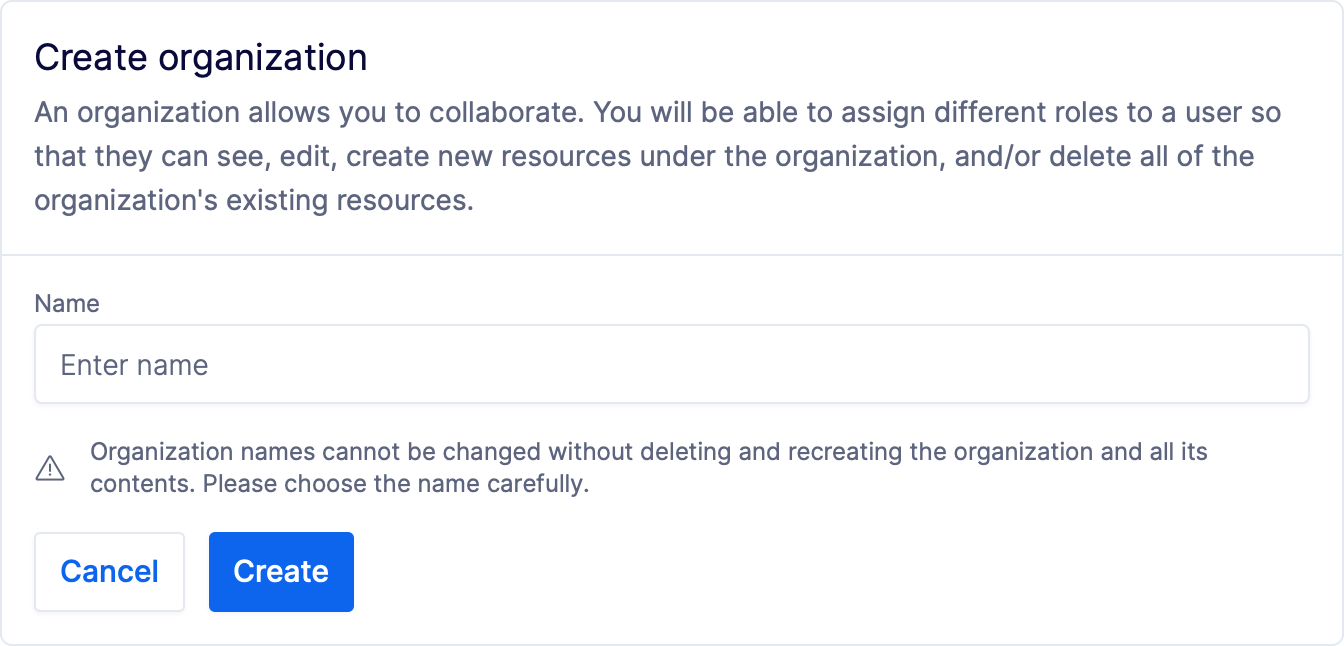
When creating the organization:
- The name must be unique on the instance, between 3 and 32 characters, lowercase letters, numbers, and
-only. - An organization URL and description (up to 350 characters) can be added when creating the organization or in organization settings later.
Delete an organization#
Warning
Deleting an organization is permanent and can’t be undone. Every repository and plugin owned by the organization must be deleted first; the BSR rejects the delete otherwise.
- Open the organization settings page at
https://your-bsr-instance.example.com/your-organization/settings/general. - Scroll to Delete organization and click the delete button.
- Confirm the operation in the modal.
Manage members#
A BSR user’s effective role on a resource is the highest of the role assigned to them in the organization, the role assigned to them on the resource, and any role contributed by an IdP group mapping (see Roles). The flows below still work alongside IdP group sync; group sync sets a floor that the UI can’t go below.
If you’re managing organization membership through IdP groups instead of (or in addition to) the BSR web app, see Manage user access with IdP groups.
Add a member#
The user being added must already have an active BSR account on the instance. After adding, the member receives the organization’s base resource role for repositories unless given a higher explicit role.
- Open the organization’s Members page at
https://your-bsr-instance.example.com/your-organization/members. - Click Add member.
- Search for the user by username and choose their role.
- Click Submit.
Change a member’s role#
- Open the organization’s Members page at
https://your-bsr-instance.example.com/your-organization/members. - Click the settings icon for the member and choose Change role.
- Choose the new role.
- Confirm the operation.
If the member’s role is contributed by an IdP group mapping, the UI prevents lowering them below that group-derived default.
Remove a member#
Use this when a member should lose access to a single organization (for example, when membership isn’t managed through SSO and a user leaves a team or has compromised credentials).
An organization must always have at least one Owner.
- Open the organization’s Members page at
https://your-bsr-instance.example.com/your-organization/members. - Click the settings icon for the user and choose Remove user.
- Confirm the removal.
Deactivate a user (private BSR)#
Removing a user from one organization doesn’t end their access to the rest of the BSR instance. On a private BSR instance, when the user should lose access to the entire instance (for example, when they leave the company), an instance admin also deactivates the BSR account. For the full deactivation flow and what it revokes, see User lifecycle: Deactivate users.
The short path:
- Open the user directory at
https://your-bsr-instance.example.com/admin/users. - Click the options button for the user and select Deactivate User.
- Confirm the deactivation.
Related#
- Roles: role definitions and the base resource role for an organization.
- Repositories: managing repositories owned by the organization.
- Manage user access with IdP groups: IdP group-based membership for SSO-managed instances.