Manage user access with IdP groups#
IdP group mapping connects security groups in your identity provider (IdP) to BSR organizations and repositories. When a user signs in, the BSR reads their groups from the IdP token and grants access to every mapped organization and repository, at whatever role you’ve chosen for the mapping. Memberships stay in sync as groups change: adding a user to a group enrolls them, and removing them un-enrolls them.
This page is for BSR administrators and organization administrators managing access on a BSR instance with SSO enabled.
- Users are granted access based on IdP group membership, with a default role that you can choose per mapping.
- The BSR enrolls and un-enrolls users automatically as your IdP groups change, and resolves differences between group-derived and manually-assigned access levels.
Before you start#
- Your BSR instance uses SSO for user provisioning.
- You can provide an OIDC claim or a SAML assertion that contains the user’s groups.
Buf needs to configure your instance before you can map groups: contact your Buf representative or Support for setup.
- For OIDC, if your IdP broadcasts a
UserInfoendpoint, you can configure the BSR to pull groups from there. Otherwise, groups must be part of the ID token. - SCIM isn’t required for this feature. If it’s enabled and you’re using it to push groups to the BSR, your IdP must still be configured to provide the OIDC claim or SAML assertion.
- For OIDC, if your IdP broadcasts a
- If you filter which groups the BSR is aware of, only map to those groups. Mapping to a group the BSR can’t see has no effect.
Warning
Once group mapping is configured, every user token from the IdP must contain group information. The consequence depends on your protocol:
- On SAML, a user whose token omits groups can’t log in to the BSR at all.
- On OIDC, a user whose token omits groups is treated as having empty groups, and loses access to every mapped organization and repository.
Map an IdP group to a resource#
Both BSR administrators and organization administrators can create mappings. The entry point differs, but the rest of the flow is identical.
Open the IdP group mapping page as a BSR administrator#
BSR administrators can map groups to any organization or repository in the instance.
- Sign in as a BSR administrator and open the Admin panel from the dropdown under your username in the top-right corner.
-
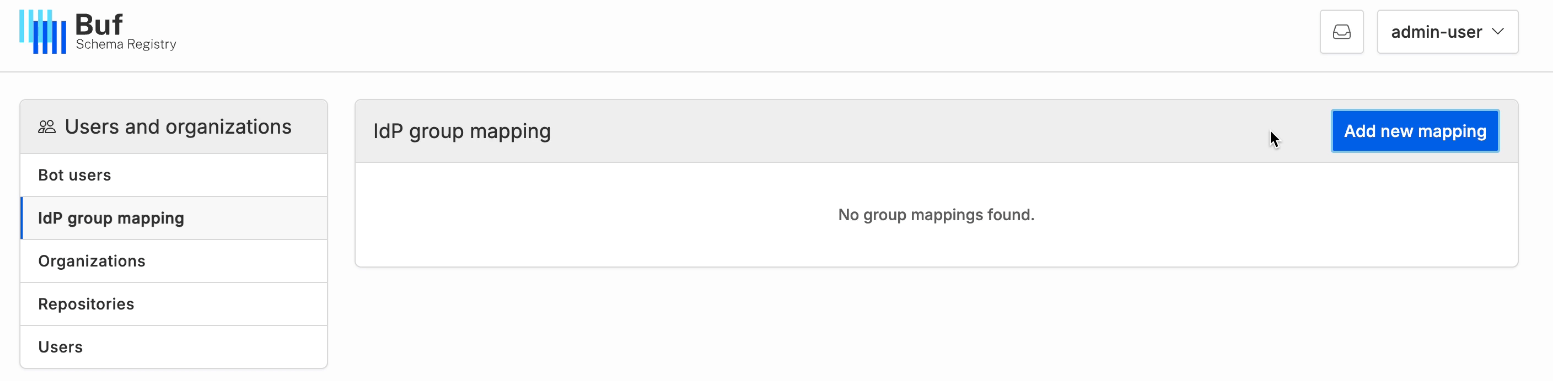
Select IdP group mapping in the left side menu.
Open the IdP group mapping page as an organization administrator#
Organization administrators can map groups to their organization and to repositories that organization owns.
Go to the organization’s Settings page at https://your-bsr-instance.example.com/your-organization/settings/general, and scroll to the IdP group mapping section.
Add and configure the mapping#
Once you’re on the IdP group mapping page:
-
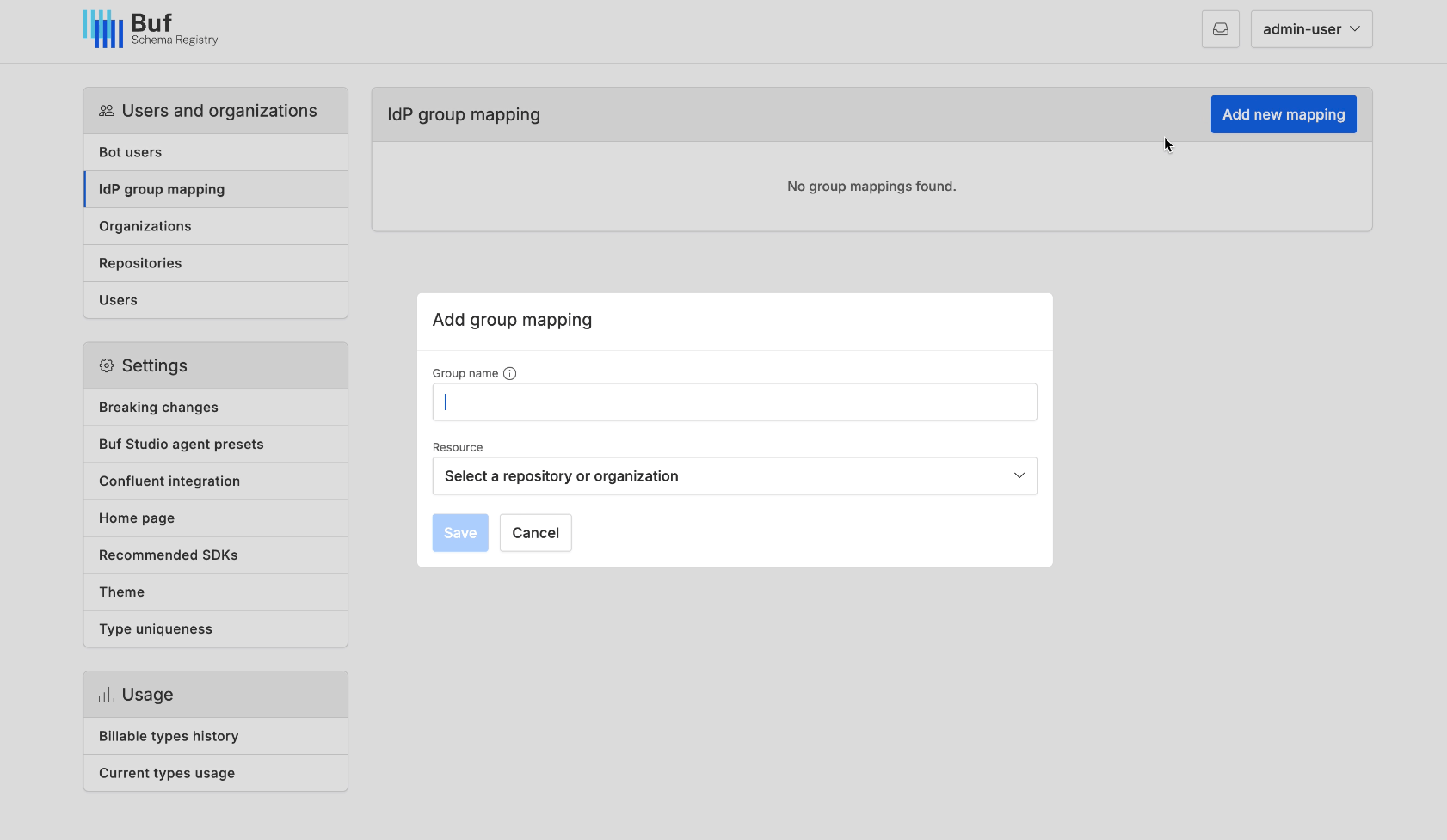
Click Add new mapping, enter the name of a group from your IdP, then select a resource to associate with the group.
-
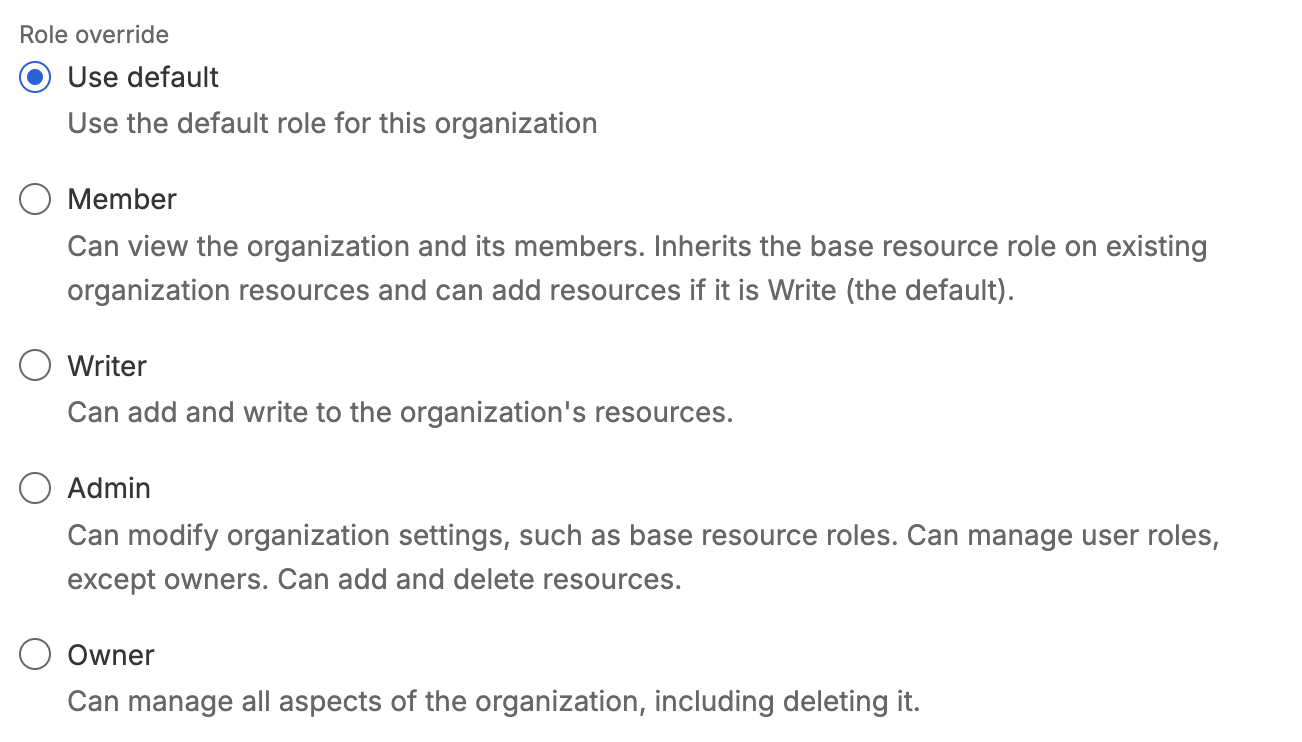
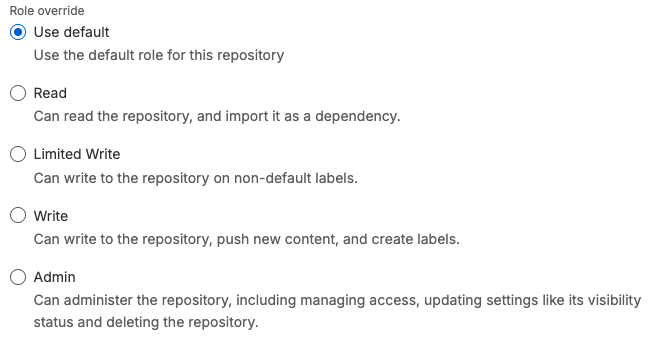
Optionally override the default role. You can edit this selection after the mapping has been created.
-
Click Save.
- Ask users to log out and log back in for the change to take effect.
Remove a mapping#
Open the IdP group mapping page as a BSR administrator or as an organization administrator, then:
- Click the three dots next to the mapping you want to remove.
-
Select Delete.
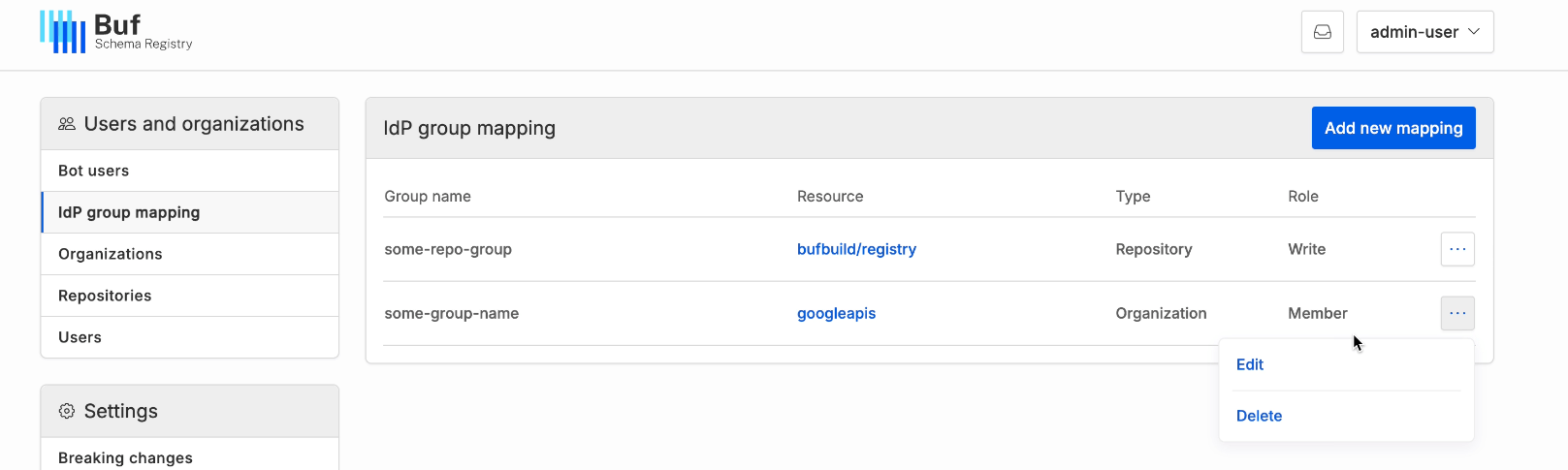
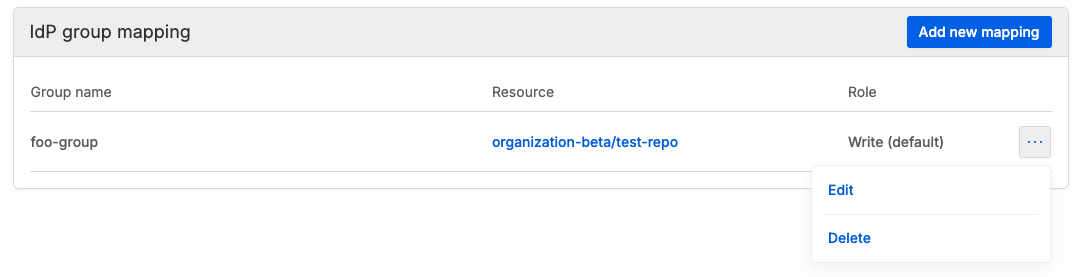
Users don’t need to log out or back in after a mapping is removed. They lose access to the mapped organization or repository immediately.
Automatically provision organizations from groups#
The BSR can automatically create an organization for any IdP group that doesn’t already have one mapped, so new teams show up in the BSR as soon as they appear in your IdP.
This feature is off by default.
Pro and Enterprise users should contact their Buf representative or Support to enable it.
On-prem deployments can enable it directly with the enable_auto_idp_org_provisioning feature flag.
When the feature is enabled and a user signs in, the BSR lists their IdP groups. For each group that isn’t already mapped to a BSR organization, and that doesn’t conflict with an existing organization name or username:
- A new organization is created and mapped to the IdP group, using the group’s name.
- The signing-in user is assigned the read-only member role in the new organization.
- The organization is owned by the system. Before any users can add repositories, a BSR admin must grant a member the admin or owner role. That member can then create resources and elevate other members’ roles as needed.
How access resolves when sources conflict#
A user’s access to an organization or repository can come from several sources at once: one or more IdP group mappings, and any role assigned manually through the BSR web app. When the sources grant different roles, the BSR uses the highest one at runtime.
For example, suppose a user belongs to two IdP groups, engineering and platform.
engineering is mapped to the acme organization at the member role, platform is mapped at the admin role, and a BSR admin has also manually given the user the member role in acme.
The user’s effective role is admin, contributed by the platform mapping.
The BSR tracks each role separately.
If the platform mapping is later changed or the user leaves that group, only the admin role contributed by platform is removed; the user retains their member roles from engineering and from the manual assignment.