Generated SDKs quickstart#
Install the BSR-generated SDK for the connectrpc/eliza module from npm.
The same find-and-install shape works for any BSR generated SDK, with per-language details on the language-specific pages below.
Generated SDKs let client teams consume generated Protobuf and Connect code without installing protoc, managing plugins, or committing generated stubs to the schema repository.
Before you start#
- Create a Buf account and sign in to the BSR.
- Have Node and npm installed locally.
- For private modules, create a BSR token and export it as
BUF_TOKEN; see Authentication: Create a token. The publicconnectrpc/elizaexample in this walkthrough installs without a token.
Find the SDK on the BSR#
You usually have a direct URL for a module, either from the schema owner or from internal documentation. You can also search by name.
-
In the search bar at the top of the BSR, enter
connectrpc/eliza. Click connectrpc/eliza in the dropdown to open the repository.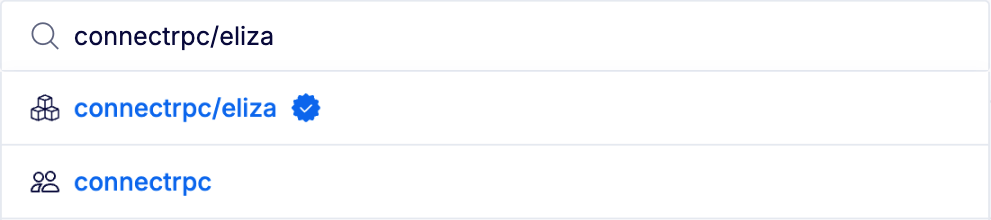
-
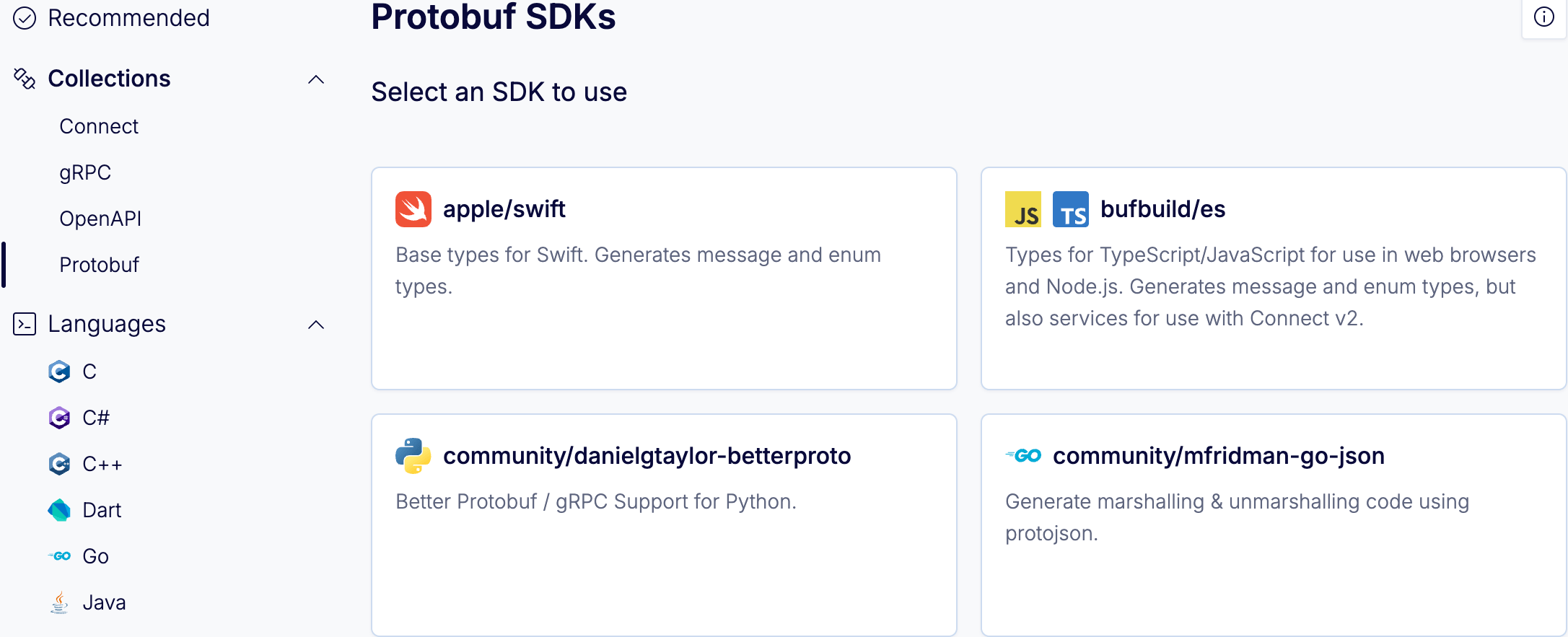
Click the SDKs tab.
-
Click the JavaScript icon, then click bufbuild/es to choose the JavaScript plugin. The install instructions for the SDK appear.
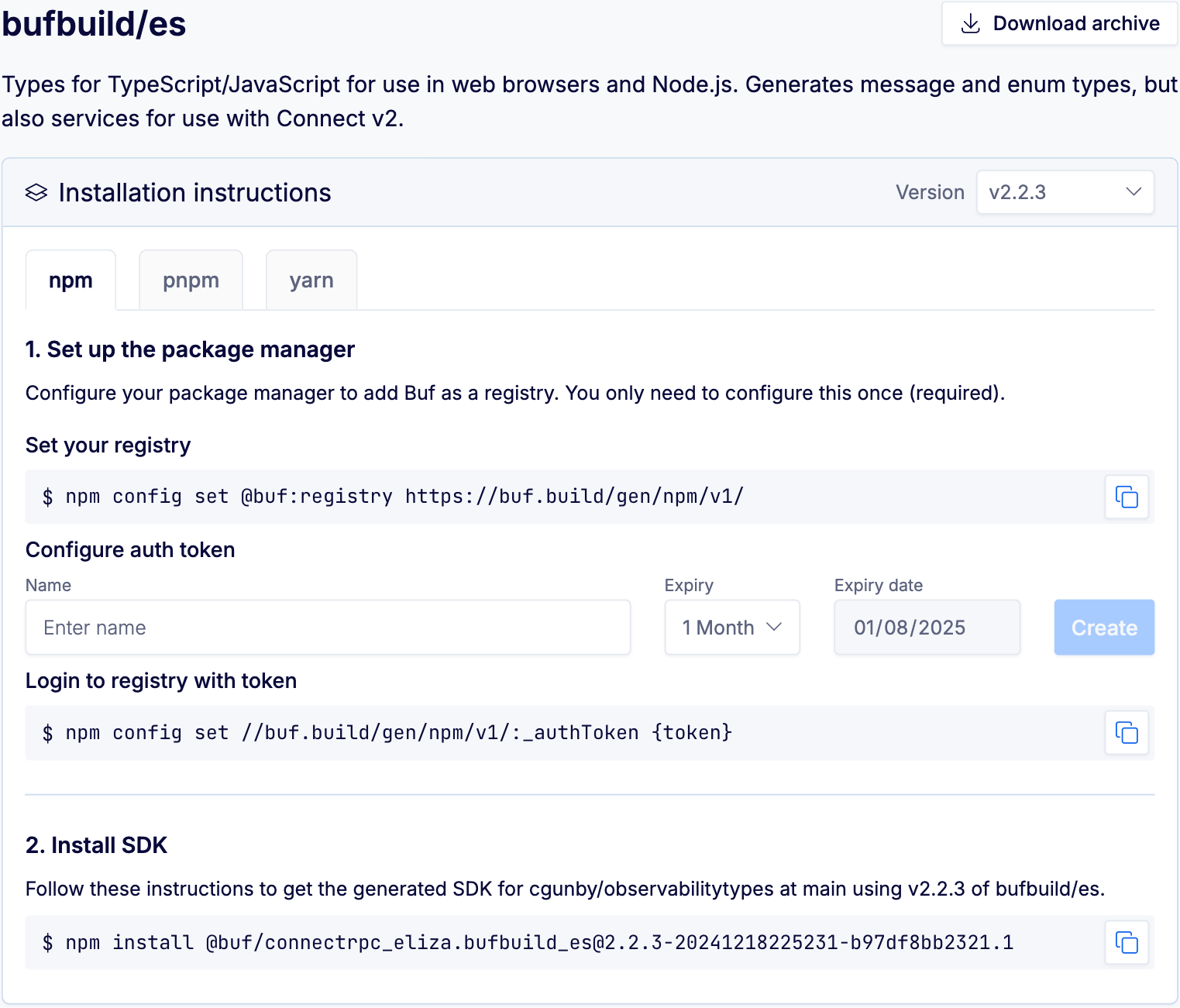
Each SDK has a different set of instructions depending on the language and the ecosystem; some plugins offer multiple package managers in separate tabs. For plugins where the BSR doesn’t host a package-manager registry, the SDK page links to an archive download instead; see Download an archive.
Point npm at the BSR#
The BSR’s npm registry lives at https://buf.build/gen/npm/v1 under the @buf scope.
Configure npm to send requests for that scope to the BSR:
For private modules, also attach your BSR token:
For the full npm setup (alternative .npmrc placement, Yarn, CI patterns), see the npm SDK page.
Install the SDK#
Run the install command from the SDK page:
npm adds an entry to package.json:
"dependencies": {
  "@buf/connectrpc_eliza.bufbuild_es": "^2.2.2-20230822171018-8b8b971d6fde"
}
Pin a version#
The default install command always resolves to the latest commit on the module’s default label and the latest plugin version. The SDK page lets you pin either independently.
Pin a module commit or label#
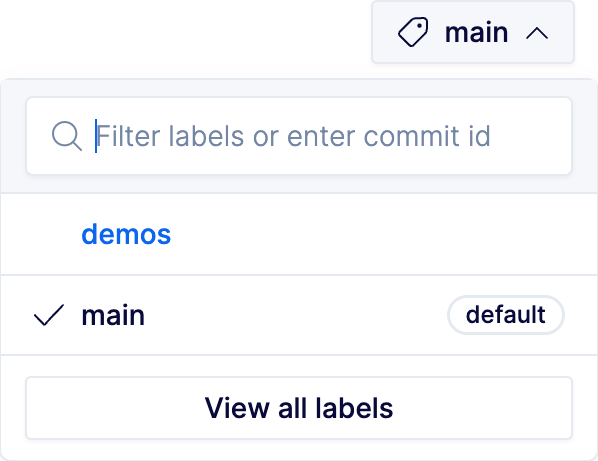
Click the dropdown in the top right of the SDKs tab and choose a commit or label. The install command updates to reflect the chosen version:
The version string decodes as {plugin-version}-{module-commit-timestamp}-{module-commit-short-id}:
2.2.2: plugin version of the chosen plugin.20230822171018: module commit timestamp (YYYYMMDDHHMMSS).8b8b971d6fde: first 12 characters of the module commit ID.
To resolve an exact SDK version programmatically, use the buf registry sdk version CLI command.
Pin a plugin version#
The Version dropdown at the top of the Installation instructions section pins the plugin while keeping the chosen module reference:

The install command updates with the new plugin version baked into the trailing version string.
Use the SDK in code#
The bufbuild/es plugin generates protobuf-es types for the module; combine the SDK with Connect-ES for service clients.
For end-to-end usage, see the Connect quickstarts: web and Node.
Other ecosystems#
The shape on this page generalizes to every BSR-supported registry; per-language install details:
For plugins without a BSR-hosted registry, see Download an archive.