Okta SAML sign-in#
Connect Okta as a SAML identity provider for your private BSR instance. Once configured, users sign in to the BSR through Okta and the BSR provisions accounts Just-in-Time using the email address Okta provides.
This walkthrough is for an Okta administrator working alongside a BSR administrator with the Admin or Owner role on the BSR organization that owns the instance.
Before you start#
- Complete Pro and Enterprise setup, including DNS, so the instance is reachable.
- Know your private BSR instance’s domain name (for example,
your-bsr-instance.example.com); the examples below use this placeholder. - Have the right BSR role:
AdminorOwneron the organization that owns the instance. - Have administrative access to your Okta organization.
Once SAML is enabled, the BSR matches each sign-in attempt to an existing BSR account by the email address Okta provides, with no documented grace period for password-based fallback. Have users set their organization email on their existing BSR account before the cut-over so the SSO identity links to the right account.
Create the Okta application#
- Sign in to your Okta organization.
- Navigate to Applications > Applications and click Create App Integration.
- For Sign-in method, select SAML 2.0 and click Next.
- Under General Settings, give the integration an App name like “Buf Schema Registry” or “Buf”. Pick a name your users will recognize.
Configure SAML#
- Set Single sign on URL to
https://your-bsr-instance.example.com/saml/acs. - Set Audience URI (SP Entity ID) to
https://your-bsr-instance.example.com. - Set Name ID format to
EmailAddressand Application username toEmail. The BSR provisions users Just-in-Time from this Name ID, so getting it right is the difference between linking to an existing BSR account and silently creating a new one.
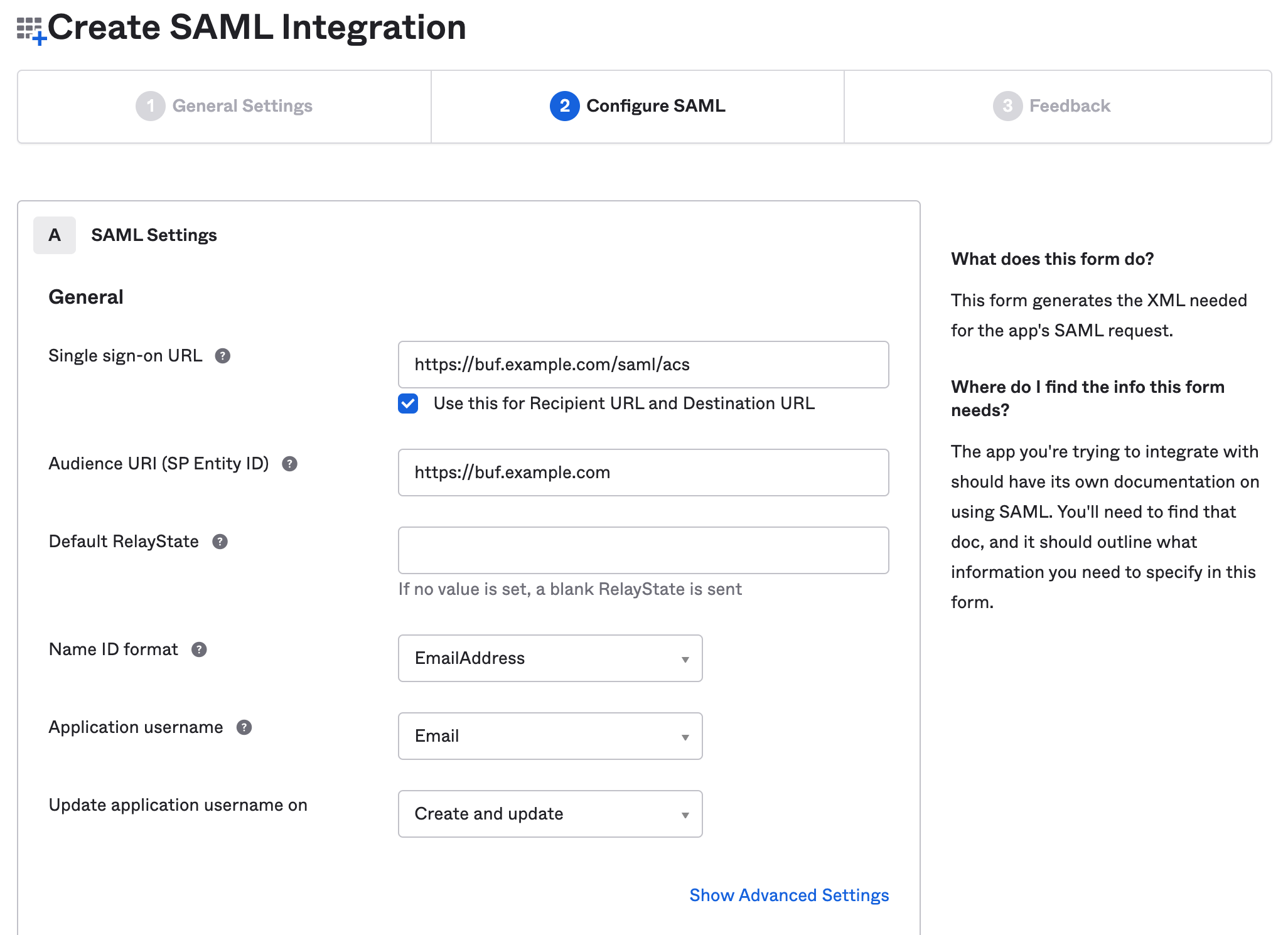
For Single Logout (SLO), Assertion Encryption, or other advanced settings under Advanced Settings, see Advanced features. Otherwise, keep the Okta defaults.
Copy the IdP metadata URL#
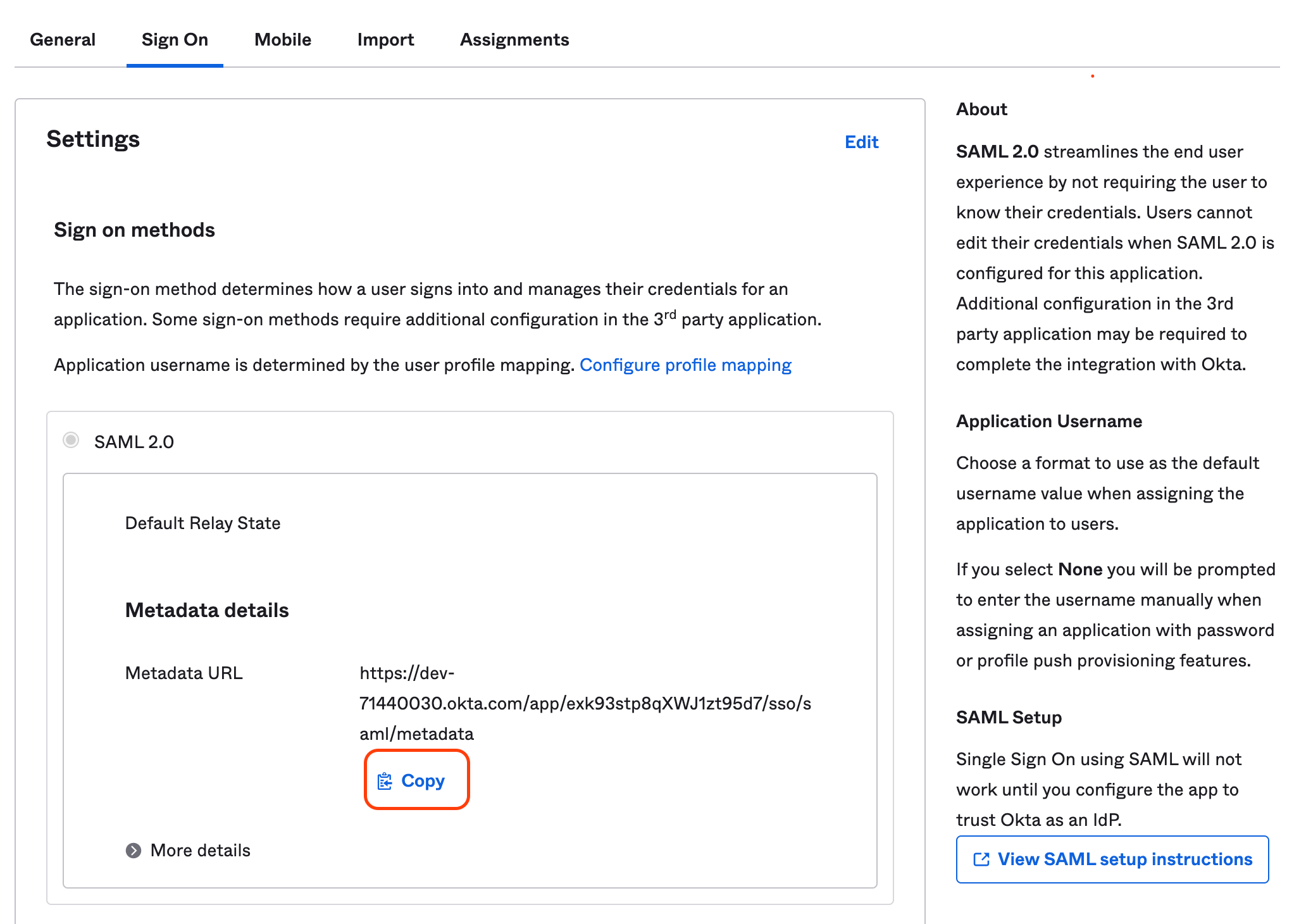
The BSR fetches its SAML configuration directly from the publicly hosted Okta metadata URL.
- Navigate to the Buf application.
- Click the Sign On tab and find Identity Provider Metadata.
-
Copy the metadata URL.
Update SSO on the BSR instance#
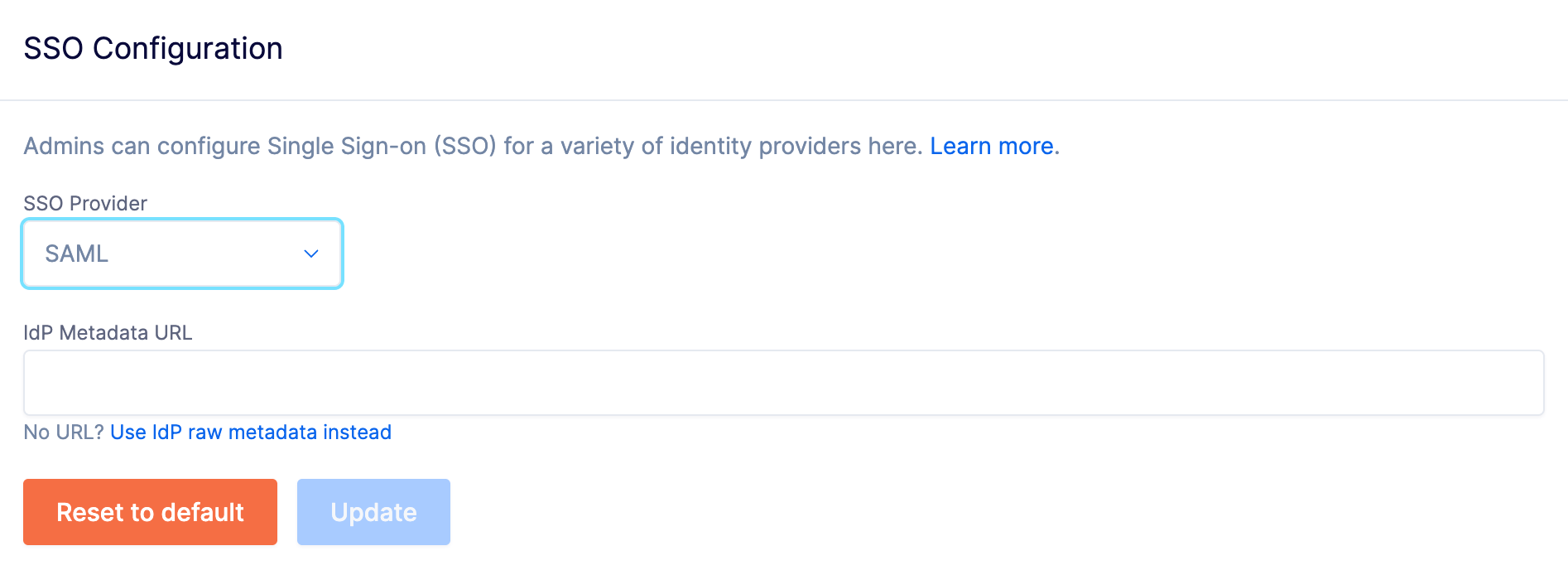
- Open the SSO configuration page at
https://buf.build/your-organization/pro-settings, whereyour-organizationis the BSR organization that owns the instance. The page is hosted onbuf.build, not on your private BSR hostname. - From the SSO Provider dropdown, choose SAML.
-
Paste the metadata URL into the IdP Metadata URL text box.
-
Click Update.
Verify sign-in#
In an incognito window, open https://your-bsr-instance.example.com and follow the sign-in flow.
The browser should redirect to Okta and, after authentication, land back on the BSR signed in as the SAML identity.
Confirm that the existing BSR account is linked (account history and permissions are intact) rather than a new account being provisioned.
SCIM provisioning#
User and group provisioning is configured separately from SAML sign-in. For automatic provisioning of Okta users and groups into the BSR, see the SCIM overview and the Okta SCIM walkthrough.
Advanced features#
Single Logout (SLO), Assertion Encryption, and similar advanced SAML options aren’t configurable from the pro-settings UI today. To enable any of them, contact Support or your Buf representative.