Plugin management#
The Plugin management admin surface on a private BSR instance controls two things: which plugins are available to users of the instance, and which Generated SDKs the BSR recommends at the instance, organization, or repository level. Each control has its own access requirements, called out below.
Disable a plugin#
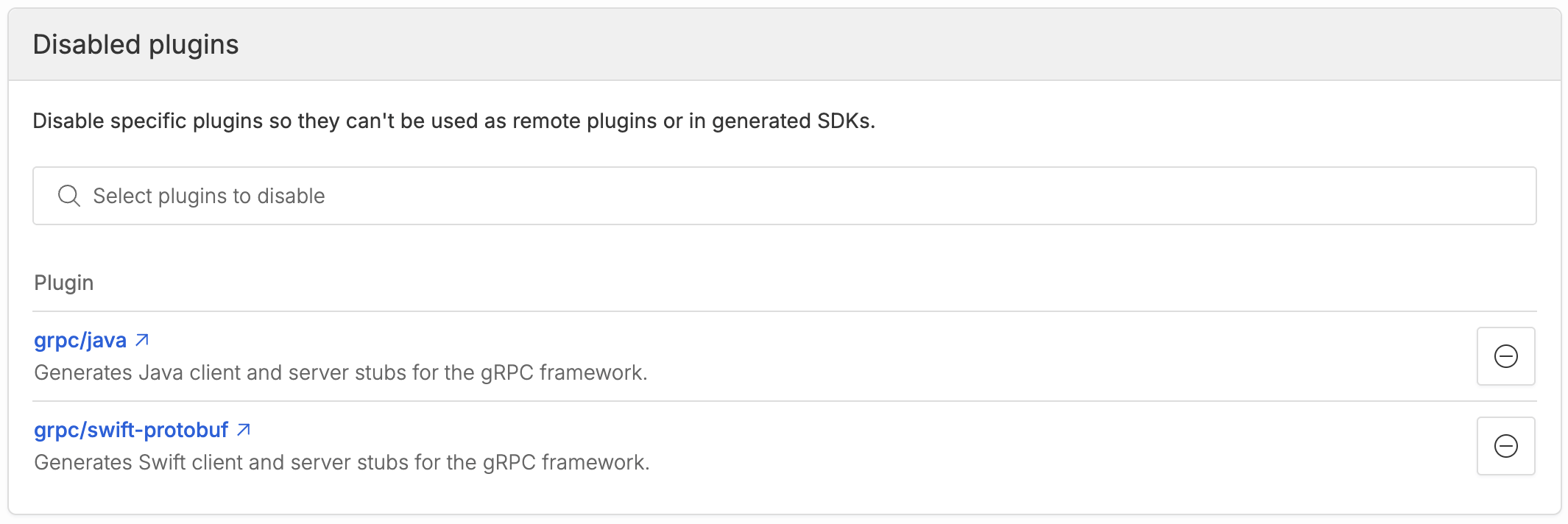
A disabled plugin is hidden from the UI and can’t be used to produce Generated SDKs or invoked as a remote plugin. Disabling is reversible.
Access: BSR administrator.
- Open the Plugin management page in the admin panel at
https://your-bsr-instance.example.com/admin/plugin-management. - Under Disabled plugins, search for the plugin you want to disable and select it. The panel lists the plugins that are already disabled.
- To re-enable a plugin, click the – at the right of its row in the disabled list.
Recommend SDKs#
A recommended SDK is one the BSR pre-generates for a repository’s default label so consumers never wait for a cold build: each time a new commit lands on the default label, the BSR generates the SDK ahead of any consumer request.
If generation fails, the SDK page shows a This SDK is failing to build panel with the failing commit, the build error, and a permalink the consumer can share with the publisher.
Transient failures show a retrying notice instead.

Set up recommended SDKs#
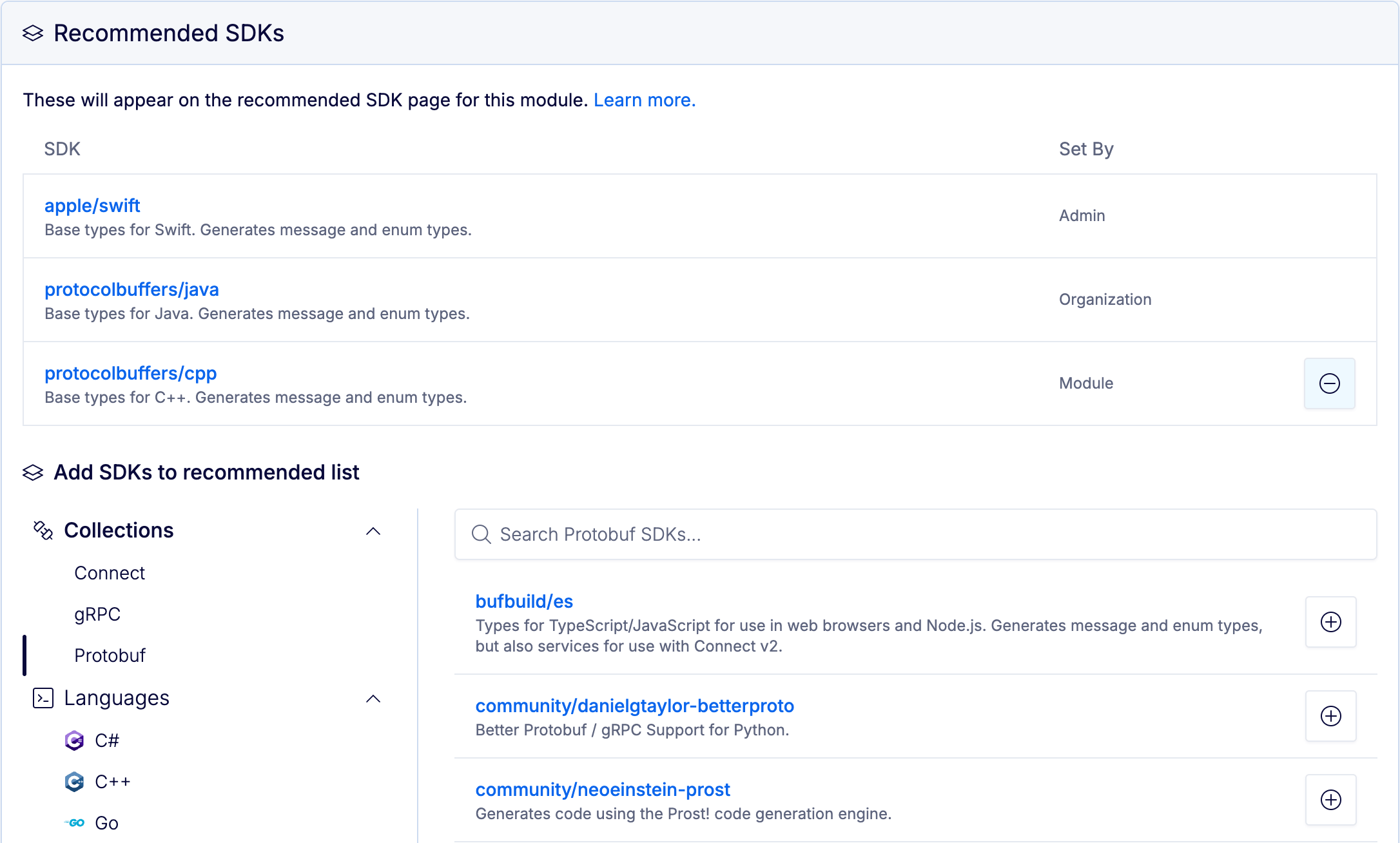
Recommendations can be configured at three levels. The flow is the same at each level; only the entry point and required access differ.
-
Instance
Access: BSR administrator. Open the Plugin management page at
https://your-bsr-instance.example.com/admin/plugin-managementand select the Recommended SDKs menu. -
Organization
Access: organization admin or owner. Open the organization settings page at
https://your-bsr-instance.example.com/your-organization/settings/generaland scroll to Recommended SDKs. -
Repository
Access: repository admin. Open the repository settings page at
https://your-bsr-instance.example.com/your-organization/your-repository/settingsand scroll to Recommended SDKs.
From the panel:
- Use the search bar to find a plugin.
- Click the + at the right of its row to add it. The panel lists every recommendation that applies at the current level and any higher level.
- To remove a recommendation, click the – at the right of its row. You can only remove recommendations set at the level you’re currently viewing.
How recommendations combine across levels#
Consumers see the union of recommendations that apply to the repository: anything recommended at the instance, organization, or repository level. The same plugin recommended at more than one level shows up once; multiple recommendations don’t reinforce each other. Removing a recommendation at one level doesn’t affect recommendations at the other levels.