Hiding package managers#
Hiding a package manager visibly hides its SDK installation instructions from users in the UI. It does not prevent a user from hitting your API via that package manager.
A package manager can be hidden at two scopes:
- Instance wide — hidden for every organization on the instance. Only instance admins can set this.
- For a specific organization — hidden only for that organization’s repositories. Instance admins and organization admins can set this.
The two scopes are independent and instance-wide always wins. Organizations cannot override an instance-wide disable.
Where to find it#
Instance admins#
Instance admins manage hidden package managers from the admin panel.
- In the BSR UI, go to Admin panel > Package Managers.
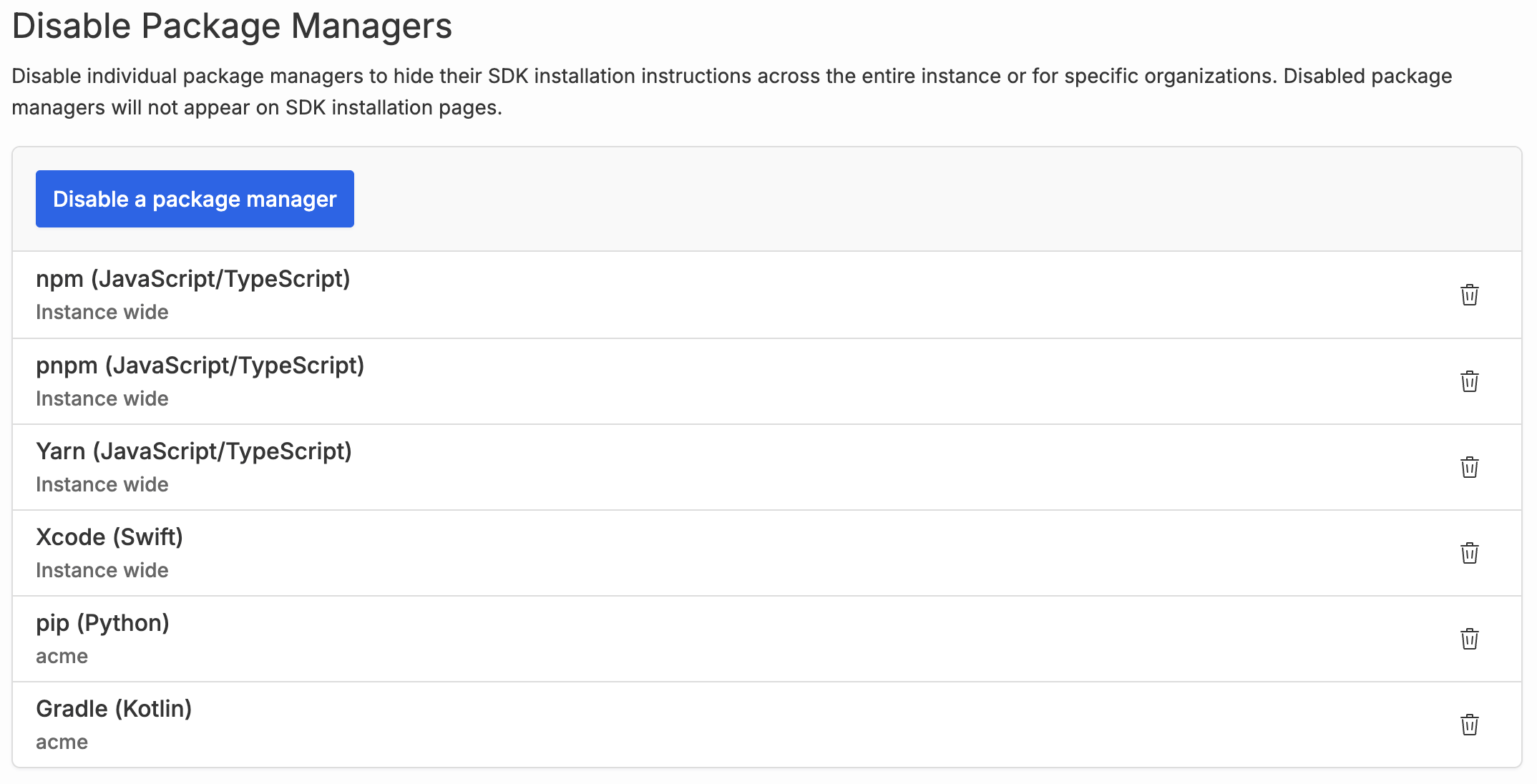
- In the Disable Package Managers section, click Disable a package manager.
- Select a package manager.
- Choose a scope:
- Instance wide disables the package manager for every organization on the instance.
- Specific organizations disables it only for the organizations you select. The list shows the organizations you administer; check one or more of them.
- Click Disable.
The section lists every disabled package manager with its scope (Instance wide or the organization name). To re-enable a package manager, click the delete icon next to it and confirm.
Organization admins#
Organization admins (users with the Owner or Admin role on the organization) can hide package managers for their own organization from the organization’s settings.
- Go to the organization’s settings page at
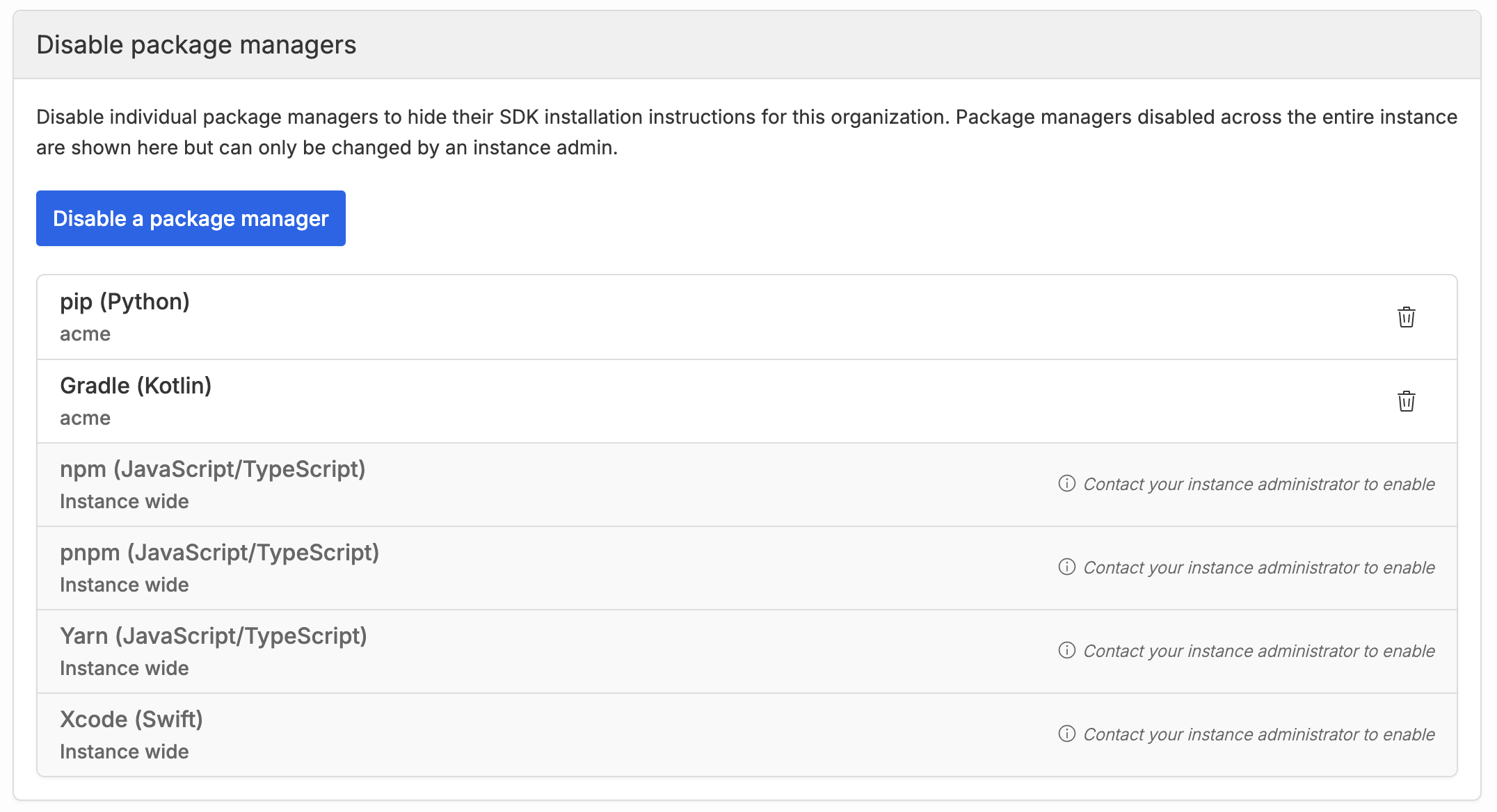
https://your-bsr-instance.example.com/your-organization/settings. - In the Disable package managers section, click Disable a package manager.
- Select a package manager and click Disable.
The section lists the package managers disabled for the organization. To re-enable one, click the delete icon next to it and confirm.
Package managers that are disabled instance-wide also appear in this section, but organization admins can’t change them. They can only be enabled by instance admins in the admin panel.
What users see#
Disabled package managers won’t appear on SDK installation pages. Users see only the package managers that remain enabled for their organization. If no package managers are enabled for the organization, a message is shown that all package managers have been disabled.